
 Get the Pixhawk Raspberry Pi CM4 Baseboard by Holybro talking with PX4 – PX4 AutopilotPX4 Autopilot
Link-local networking setup between CM4 and FC
Local cable
To set up a local ethernet connection between CM4 and the flight computer, the two ethernet ports need to be connected using a 8 pin to 4 pin connector.
The pinout of the cable is:
8 pin:1 A2 B3 C4 D5 (not connected)6 (not connected)7 (not connected)8 (not connected)
to 4 pin:1 B2 A3 D4 C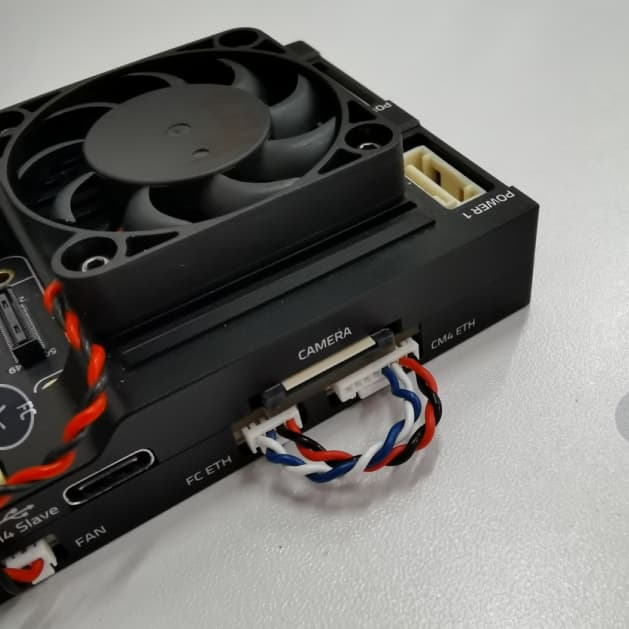
IP setup on CM4
Since there is no DHCP server active in this configuration, the IPs have to be set manually:First, connect to the CM4 via ssh by connecting to the CM4’s wifi (or use a Wifi dongle).Once the ethernet cables are plugged in, the eth0 network interface seems to switch from DOWN to UP.
You can check the status using:ip address show eth0
You can also try to enable it manually:sudo ip link set dev eth0 up
It then seems to automatically set a link-local address, for me it looks like this:ip address show eth02: eth0: <BROADCAST,MULTICAST,UP,LOWER_UP> mtu 1500 qdisc mq state UP group default qlen 1000 link/ether xx:xx:xx:xx:xx:xx brd ff:ff:ff:ff:ff:ff inet 169.254.21.183/16 brd 169.254.255.255 scope global noprefixroute eth0 valid_lft forever preferred_lft forever inet6 fe80::yyyy:yyyy:yyyy:yyyy/64 scope link valid_lft forever preferred_lft forever
This means the CM4’s ethernet IP is 169.254.21.183.
IP setup on FC
Now connect to the NuttX shell (using a console, or the MAVLink shell), and check the status of the link:ifconfigeth0 Link encap:Ethernet HWaddr xx:xx:xx:xx:xx:xx at DOWN inet addr:0.0.0.0 DRaddr:192.168.0.254 Mask:255.255.255.0
For me it is DOWN at first.
To set it to UP:ifup eth0ifup eth0...OK
Now check the config again:ifconfigeth0 Link encap:Ethernet HWaddr xx:xx:xx:xx:xx:xx at UP inet addr:0.0.0.0 DRaddr:192.168.0.254 Mask:255.255.255.0
However, it doesn鈥檛 have an IP yet. I鈥檓 going to set one similar to the one of CM4:ifconfig eth0 169.254.21.184
And check it:ifconfigeth0 Link encap:Ethernet HWaddr xx:xx:xx:xx:xx:xx at UP inet addr:169.254.21.184 DRaddr:169.254.21.1 Mask:255.255.255.0
Now the devices should be able to ping each other.
Note that this configuration is ephemeral and will be lost after a reboot, so we鈥檒l need to find a way to configure it statically.
Ping test
First from the CM4:ping 169.254.21.184PING 169.254.21.184 (169.254.21.184) 56(84) bytes of data.64 bytes from 169.254.21.184: icmp_seq=1 ttl=64 time=0.188 ms64 bytes from 169.254.21.184: icmp_seq=2 ttl=64 time=0.131 ms64 bytes from 169.254.21.184: icmp_seq=3 ttl=64 time=0.190 ms64 bytes from 169.254.21.184: icmp_seq=4 ttl=64 time=0.112 ms^C--- 169.254.21.184 ping statistics ---4 packets transmitted, 4 received, 0% packet loss, time 3077msrtt min/avg/max/mdev = 0.112/0.155/0.190/0.034 ms
And from the FC in Nuttx Shell:ping 169.254.21.183PING 169.254.21.183 56 bytes of data56 bytes from 169.254.21.183: icmp_seq=0 time=0 ms56 bytes from 169.254.21.183: icmp_seq=1 time=0 ms56 bytes from 169.254.21.183: icmp_seq=2 time=0 ms56 bytes from 169.254.21.183: icmp_seq=3 time=0 ms56 bytes from 169.254.21.183: icmp_seq=4 time=0 ms56 bytes from 169.254.21.183: icmp_seq=5 time=0 ms56 bytes from 169.254.21.183: icmp_seq=6 time=0 ms56 bytes from 169.254.21.183: icmp_seq=7 time=0 ms56 bytes from 169.254.21.183: icmp_seq=8 time=0 ms56 bytes from 169.254.21.183: icmp_seq=9 time=0 ms10 packets transmitted, 10 received, 0% packet loss, time 10010 ms
MAVLink/MAVSDK test
For this, we need to set the mavlink instance to send traffic to the CM4’s IP:
For an initial test we can do:mavlink start -o 14540 -t 169.254.21.183
This will send MAVLink traffic on UDP to port 14540 (the MAVSDK/MAVROS port) to that IP which means MAVSDK can just listen to any UDP arriving at that default port.
To run a MAVSDK example, install mavsdk via pip, and try out an example from MAVSDK-Python/examples.
For instance:python3 -m pip install mavsdkwget https://raw.githubusercontent.com/mavlink/MAVSDK-Python/main/examples/tune.pychmod +x tune.py./tune.py


Leave a Reply